AI Pose Changer
Change a person’s pose with a reference photo. Upload two images, review the credit cost, and create a new pose preview. Faces, clothing and backgrounds may vary.
Upload a person and a pose reference
Upload one person photo and one pose reference. Both images are required. Identity, clothing and background details may change.
Advanced settings: Nano Banana 2, 3 credits, 1K
Output aspect ratio
Drop person photo here
- or -
Click to Upload
Drop pose reference photo here
- or -
Click to Upload
Upload a pose reference image:
AI will apply this pose to the person in your photo.
Optional: preserve the face, outfit and background; follow the reference body pose.
No result yet. Upload your images and click Generate to see the edited photo.
Sign-in required. This model uses 3 credits per image. Resolution depends on the model and aspect ratio. Credit and download details
How to change a pose with a reference photo
An AI pose changer uses a reference photo to guide a new body position. It generates new pixels, so hidden limbs, fabric folds and background areas may be reconstructed. Use it to explore portrait poses, outfit presentation and creative compositions; inspect the result before using it as a finished image.
- 01
Choose the person
Upload one clear photo with the face and relevant body area visible. A full-body photo works better for full-body changes. Use an image you have permission to edit.
- 02
Choose the reference
Upload a second photo with the body pose you want. This image guides posture, not the person’s identity or outfit. Prefer similar framing and unobstructed limbs.
- 03
Generate and inspect
Check the selected model, output ratio and credit cost, then sign in and generate. Compare the hands, face, garment and scene with the original. Another attempt also uses credits.
Give the model a clear visual instruction
Optional prompt example: “Use only the body pose from the reference. Keep the original face, hair, dress and plain background.” A written instruction cannot replace the second photo. Very different camera angles, hands covering the face and extreme twists can introduce distortion. Start with a simple standing or seated reference and change one thing at a time.
Actual pose-transfer examples
Generated with Nano Banana 2 using the two displayed inputs. These are selected attempts, not a guarantee of the same result. Look closely at the face, hands, garment details and any furniture added for the new pose.
Standing gown → seated reference
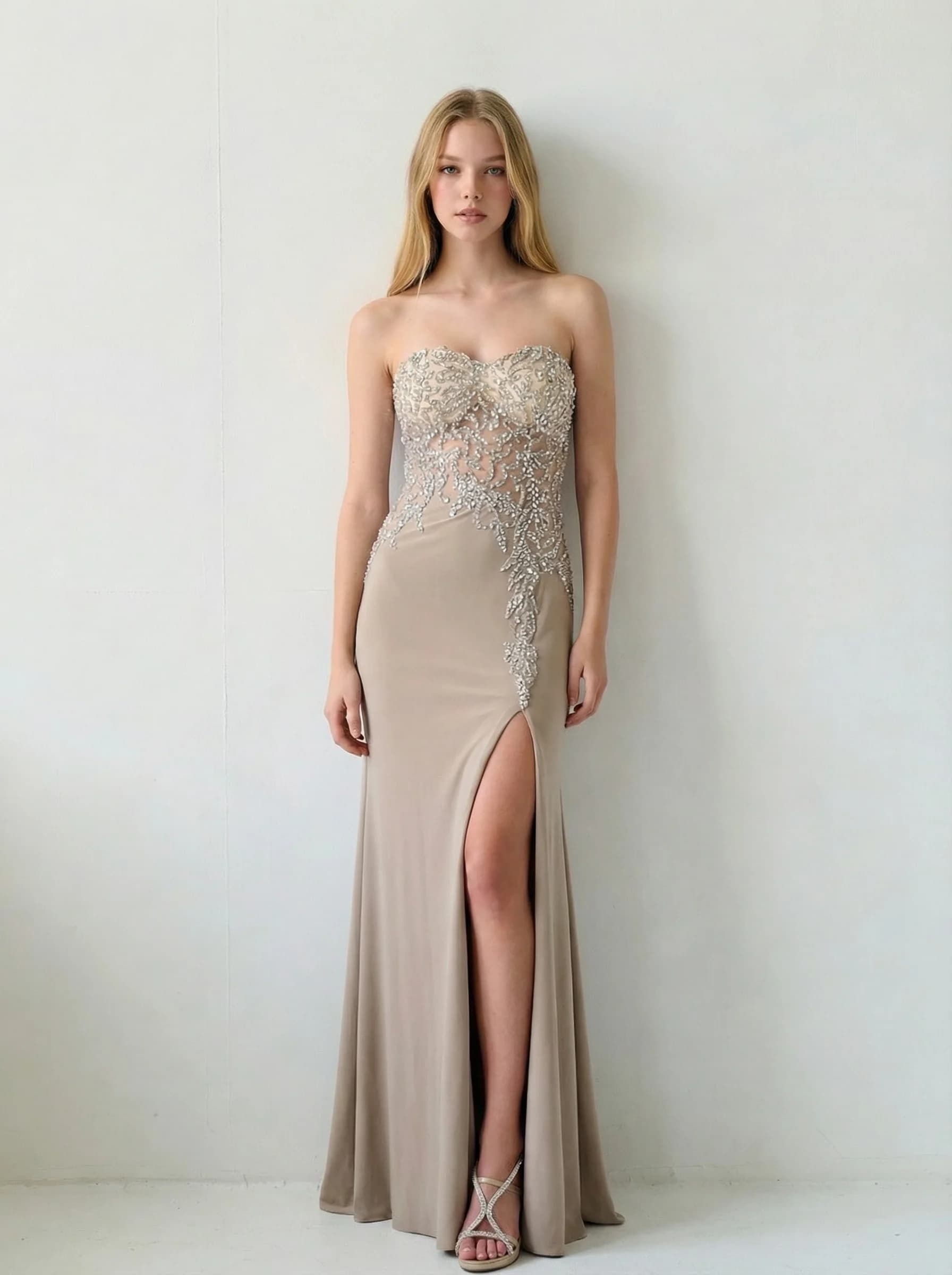
Person photo
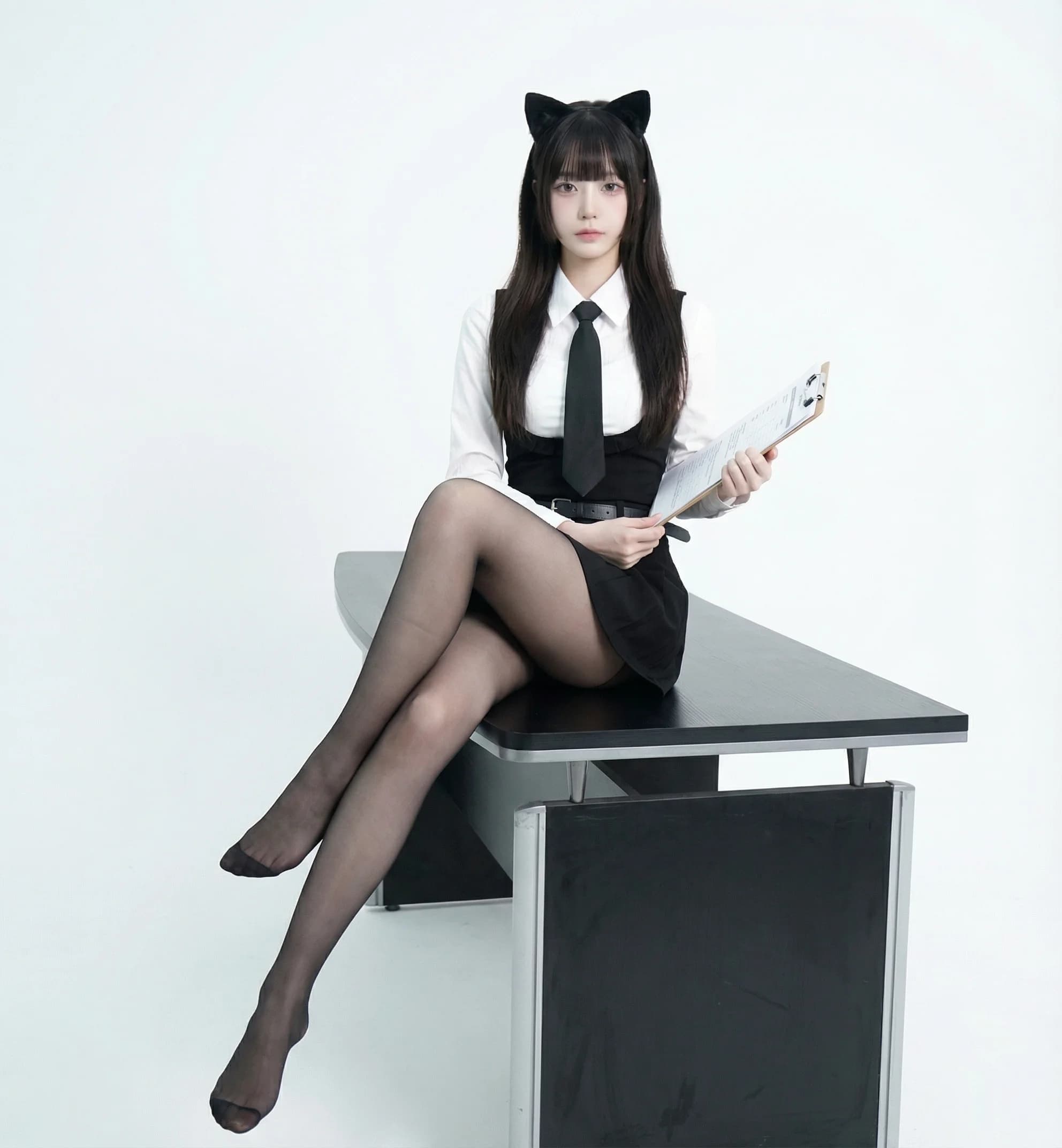
Pose reference
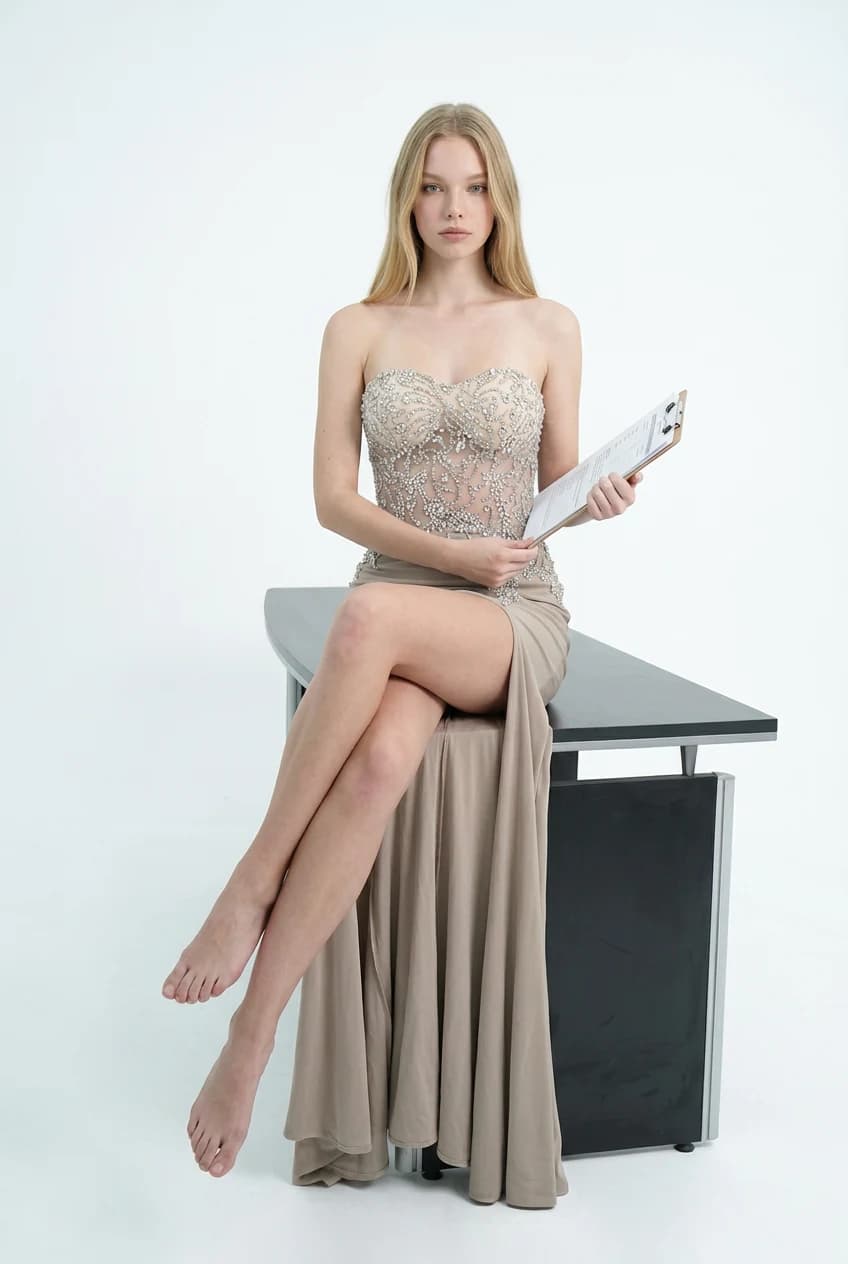
AI result
Seated portrait → standing reference
Person photo
Pose reference
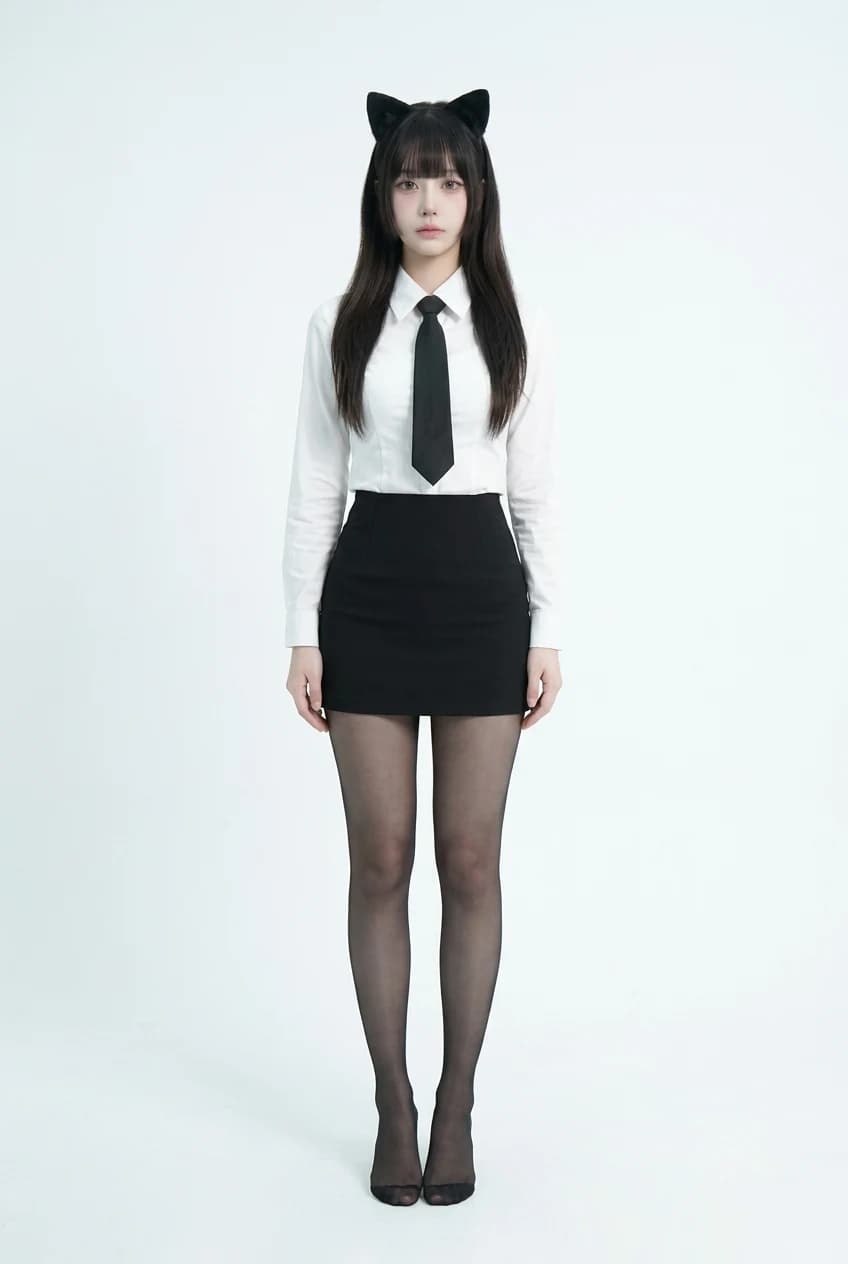
AI result
Silk dress → seated reference
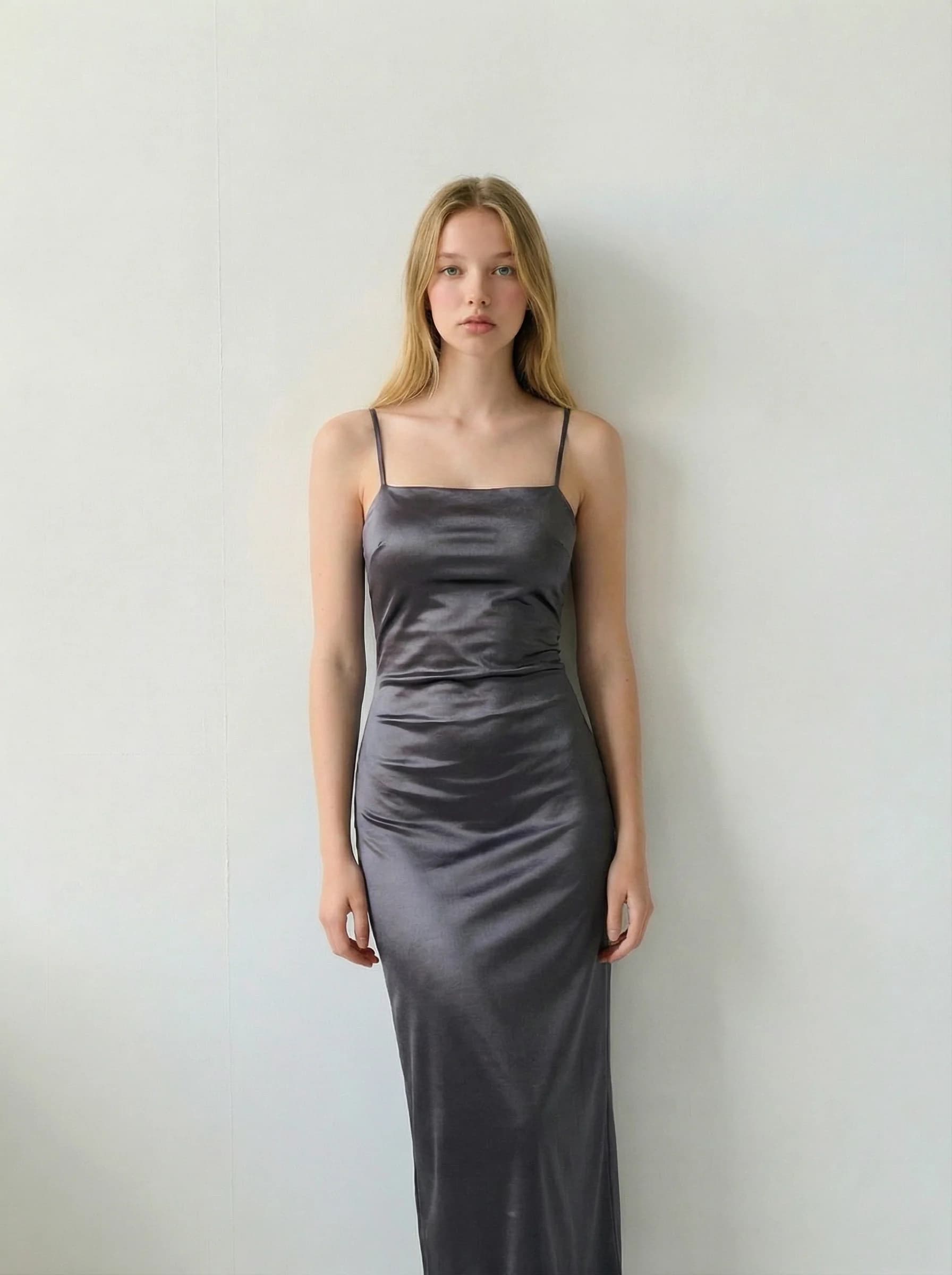
Person photo
Pose reference
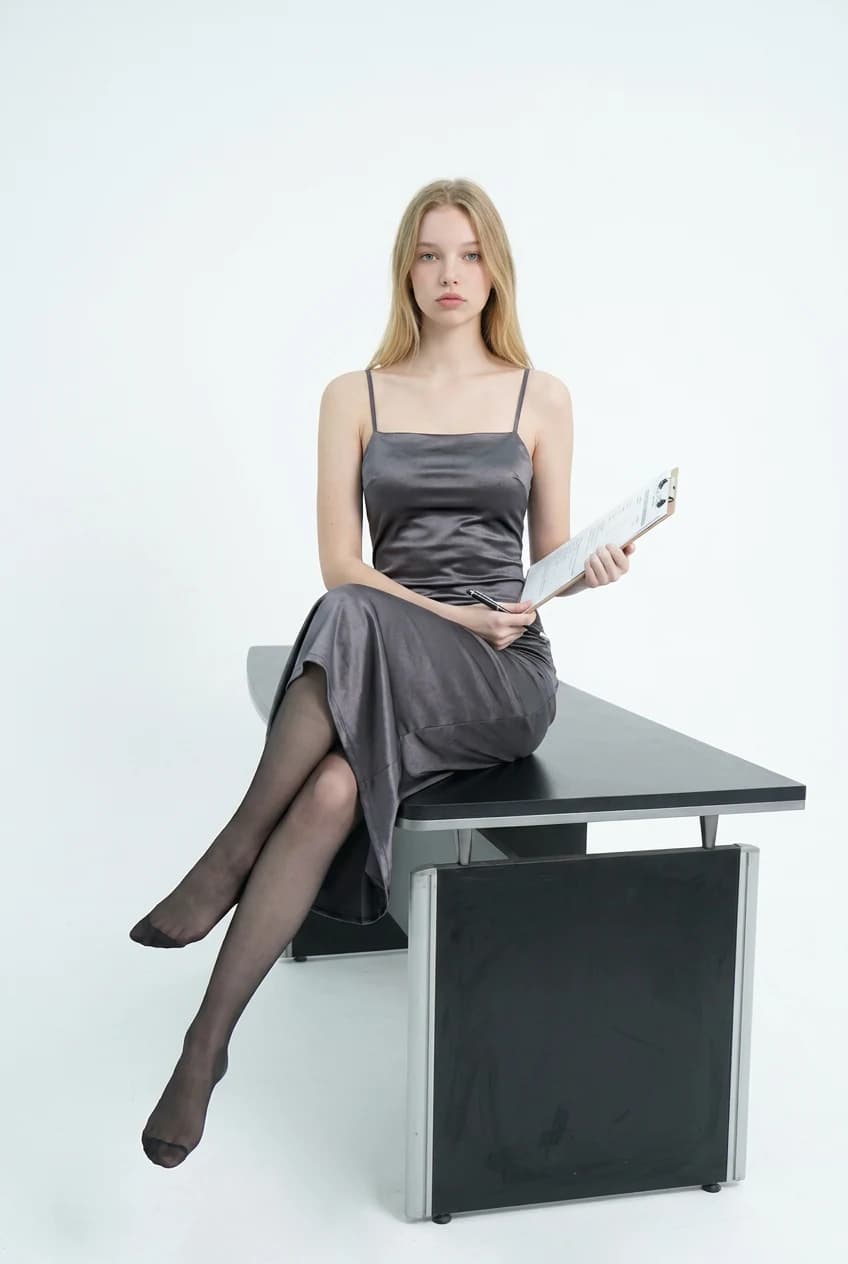
AI result
Credits, login and downloads
Know what is included before you upload.
- Credit balance
- Generation requires credits. Sign in to check your balance and purchase a credit plan if needed.
- Account required
- You can explore examples before signing in. An account and enough credits are required to generate your own image.
- Watermark
- AI Clothes Changer does not add a visible watermark when downloading the returned image. Provider-generated marks, if present, are not removed.
- Output resolution
- Nano Banana 2: 3 credits, 1K output; Nano Banana Pro: 8 credits, 2K output; GPT Image 2.5 Flare: 2 credits, 1K output; Flux 2 Pro: 2 credits, 1K output; Seedream 5.0 Pro: 8 credits, 2K output. Actual pixel dimensions depend on aspect ratio. This is a visual preview, not a size or fit measurement.
- Credit usage
- Generation costs depend on the selected model. Each new generation uses credits. A paid plan adds credits; check Pricing for its expiry and usage terms.
AI pose changer questions
How does this AI pose changer work?
Upload a photo of one person and a second photo showing the pose you want. The AI uses the second image as a body-pose guide while attempting to preserve the person, outfit and scene from the first. Review the result because those details can change.
Can I change a pose using only a text prompt?
No. This workflow requires both a person photo and a pose reference photo. Optional instructions can clarify details, but cannot replace the reference image.
Will the face and clothes stay exactly the same?
The model is instructed to retain the original identity and clothing, but exact preservation is not guaranteed. Check the face, hands, garment pattern, accessories and background before downloading or sharing.
Which pose reference works best?
Use a clear photo of one person with the relevant arms and legs visible. Similar framing, camera angle and body proportions help. Avoid group photos, collages, cropped limbs and heavy occlusion. Complex poses may require another attempt.
Can I turn a standing photo into a seated pose?
You can use a seated reference, but changing posture may require the model to invent hidden clothing, limbs or a seat. Our examples show actual generated attempts, including changes to the scene. A plausible result is not a physically exact reconstruction.
Do I need an account and credits?
Yes. You can inspect examples and load sample inputs without signing in. Generating requires a signed-in account with enough credits. The selected model and its credit cost appear in Advanced settings and next to the generation button.
Does this swap faces or exchange two people’s clothes?
No. This page edits one person’s pose using a reference. It does not provide a face-swap workflow or create two images with exchanged outfits. For a clothing-reference edit, use Virtual Clothes Try-On.
Can I use it on my phone?
Yes. Use the browser tool, upload both photos, select the output ratio and generate. No app installation is needed. Keep the page open while the request is submitted; completed tasks are available in My Creations.
How long does generation take?
Processing time depends on the model and provider queue. Follow the progress indicator instead of submitting repeated requests. If a task is still processing, check My Creations before starting another generation.
What images am I allowed to upload?
Use photos you own or have permission to edit and respect the people depicted. Provider content restrictions apply. The tool does not offer an unrestricted generation mode.
Can I use full-body and half-body photos?
Use a full-body photo and a full-body reference when the legs and stance need to change. Half-body inputs suit changes to upper-body posture. If a limb is outside the frame, the model may invent it rather than recover its true appearance.
Can I change two people’s poses at once?
No. Use one person in the source and one person in the reference. Group photos can make the model choose the wrong person; crop to a single subject before uploading.
Choose your next photo edit
Use a pose reference to change posture, or a clothing reference to preview an outfit. Each generation creates one edited image.